
Screenshot
Capture a named window, one display, a selected area or all displays. Keep a PNG, copy the image, or create a JPEG copy in the editor.
FREE WINDOWS SCREEN RECORDER
Screenshots. Video. The moment before. Three clear actions, with your files and processing on your own PC.
Completely free with your VISINVOKE account. Install through Desktop Command Centre.
Simple choices at the front. Useful controls when you need them.
Capture a named window, one display, a selected area or all displays. Keep a PNG, copy the image, or create a JPEG copy in the editor.
Start, pause, resume and stop a full recording. Save a compatible MP4 with the picture and sound you chose.
Choose recent history from 15 seconds up to ten minutes. Replay starts off and uses a bounded local encoded cache.
Keep a moment that happened before the keypress. Save again without replacing an earlier clip or stopping the running buffer.
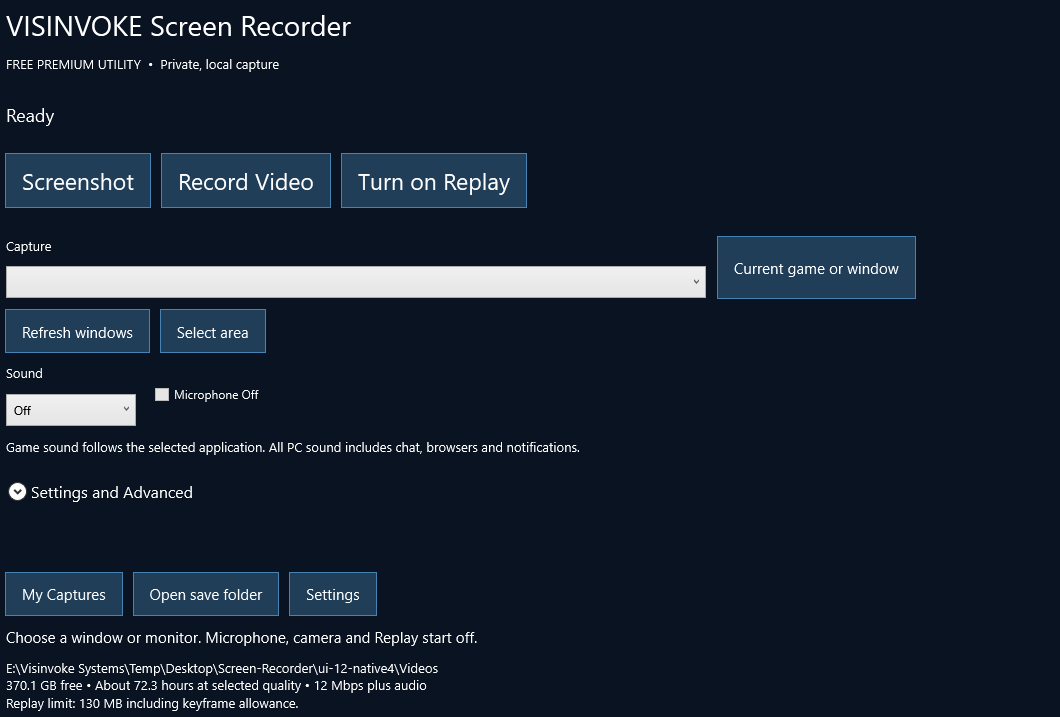
Choose a window or monitor, check the sound choice, then press Record Video.
Current game or window selects the application you have brought forward. Unknown games can be selected by their visible window name. Selected-window capture never changes itself into whole-desktop capture.
Game sound follows the selected process where Windows supports it. All PC sound is clearly named because it can include voice chat, browsers and notifications. Sound can also be Off.
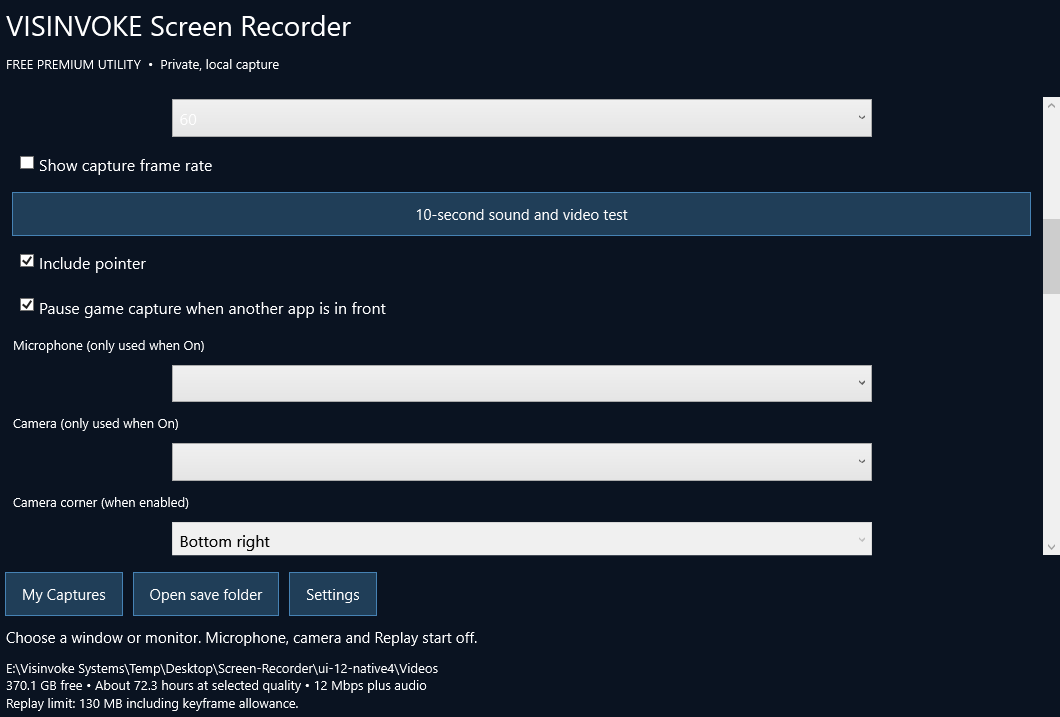
Microphone and camera require your choice. Enable an available device and make a ten-second local test before a long session. Optional push-to-talk and microphone gain stay in Settings.
Choose 30 or 60 frames per second and a quality preset. Actual acquired frames depend on the display, source, driver and available hardware. A registered hardware encoder is probed; a short test checks the real source.
The same encoded capture can serve replay and a full recording.
Pause a selected window when another application comes forward. Minimized, closed or unavailable sources receive a clear message instead of an unexpected desktop recording.
Use the main controls, registered shortcuts or tray. Closing an active session offers finish and save, keep recording in the tray, or cancel closing.
Keep an ordinary mixed MP4 by default. Optional separate WAV files retain the selected sound sources and can be mixed at individual volumes in the local clip editor.
Choose local save folders and an NTFS replay cache. A reserve check warns and finishes capture before the drive is exhausted where possible. Files are given unique names.
Edit the result while keeping the original.
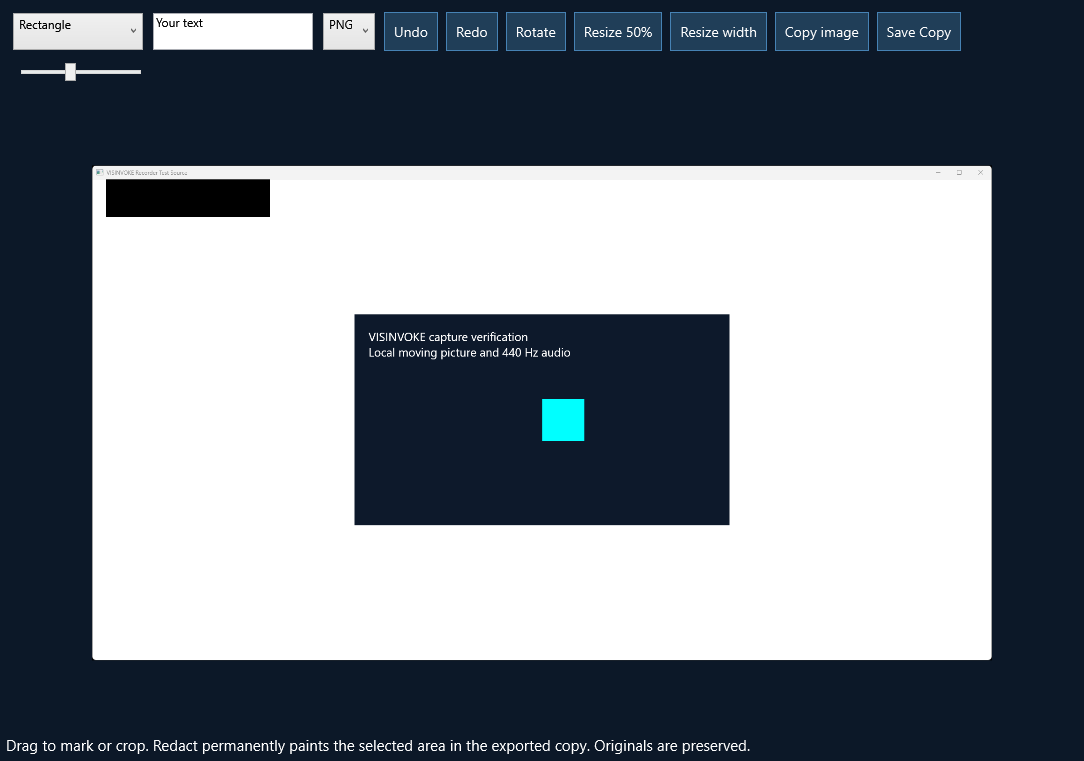
Crop, rotate or resize a screenshot. Add arrows, rectangles, circles, a pen, lines, text, numbered callouts or highlights. Undo and redo while working.
Blur and pixelate help presentation. Opaque Redact paints over selected pixels in the exported copy. Save Copy flattens the visible edits into a new PNG or JPEG. Keep an unredacted original private.
For video, choose the useful range, split at the playhead, remove an inside section or join compatible clips. Adjust export sound, rotate the picture and optionally add a title.
Choose portrait, square or landscape framing and preview the manual position before export. Short local GIF export is available for small, silent animated clips. Originals remain unchanged.
Preview a crop and save a new clip.
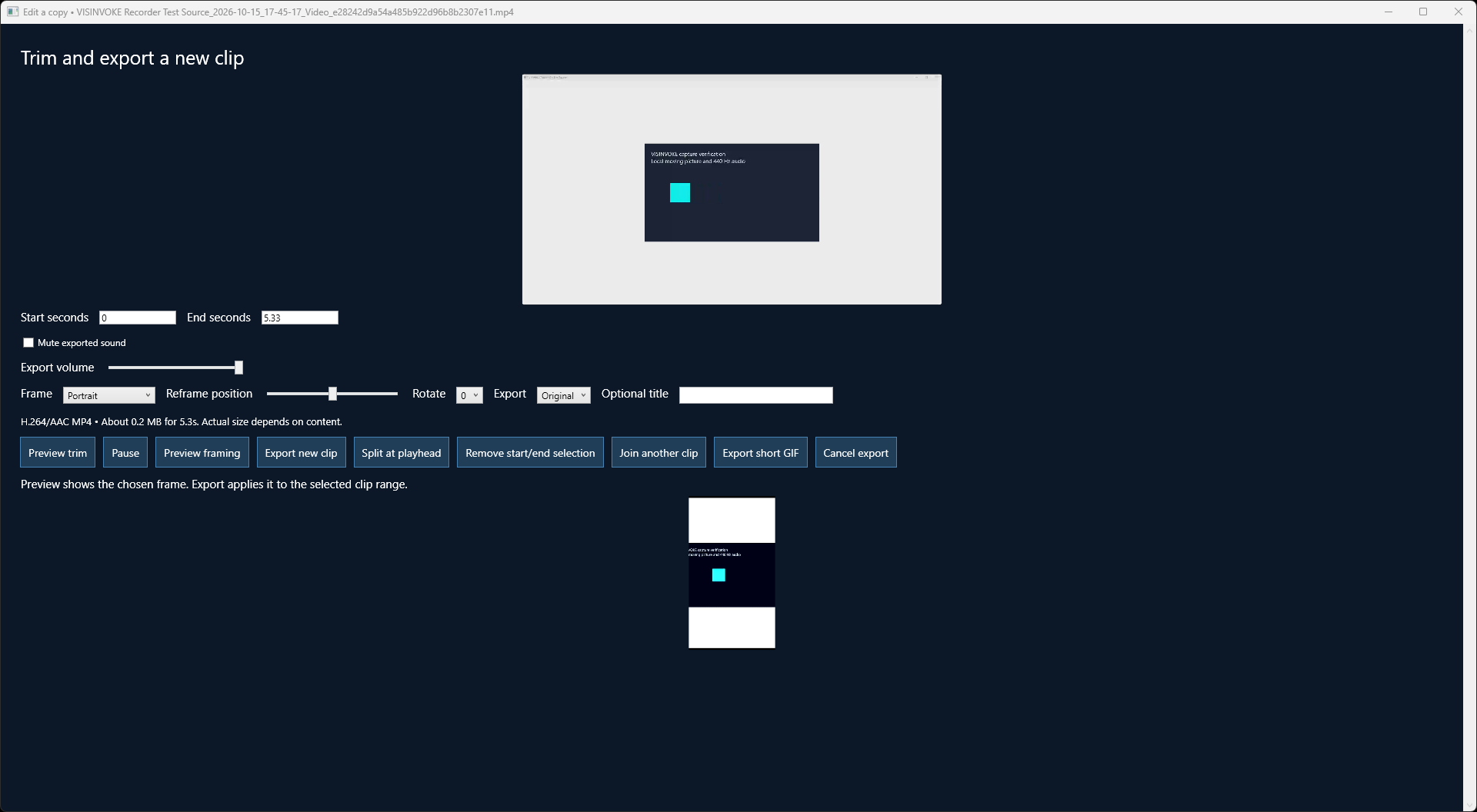
Choose the start and end of a clip, adjust its sound, and export a new H.264/AAC MP4. The estimated size changes with the selected range and quality.
Portrait, square and landscape choices include a framing preview. Position the crop before saving. A short GIF export also appears in My Captures.
Playback and frame previews stay on your computer.
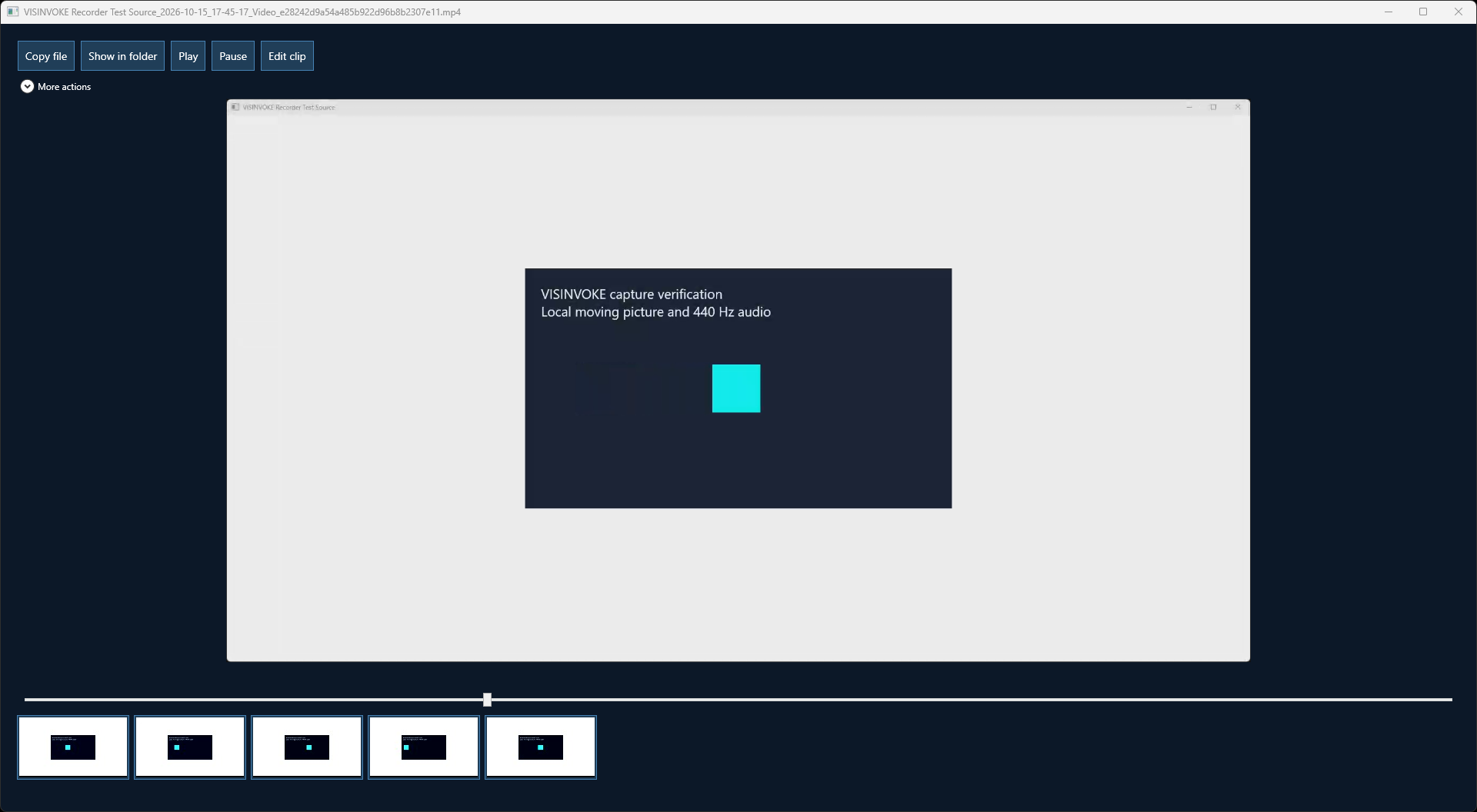
Play, pause and seek without installing another player. Click a frame thumbnail to jump to that part of the recording.
Your original remains available while you edit a copy. Copy the file or show it in its folder when you are ready to use it elsewhere.
My Captures puts saved media next to its useful actions.
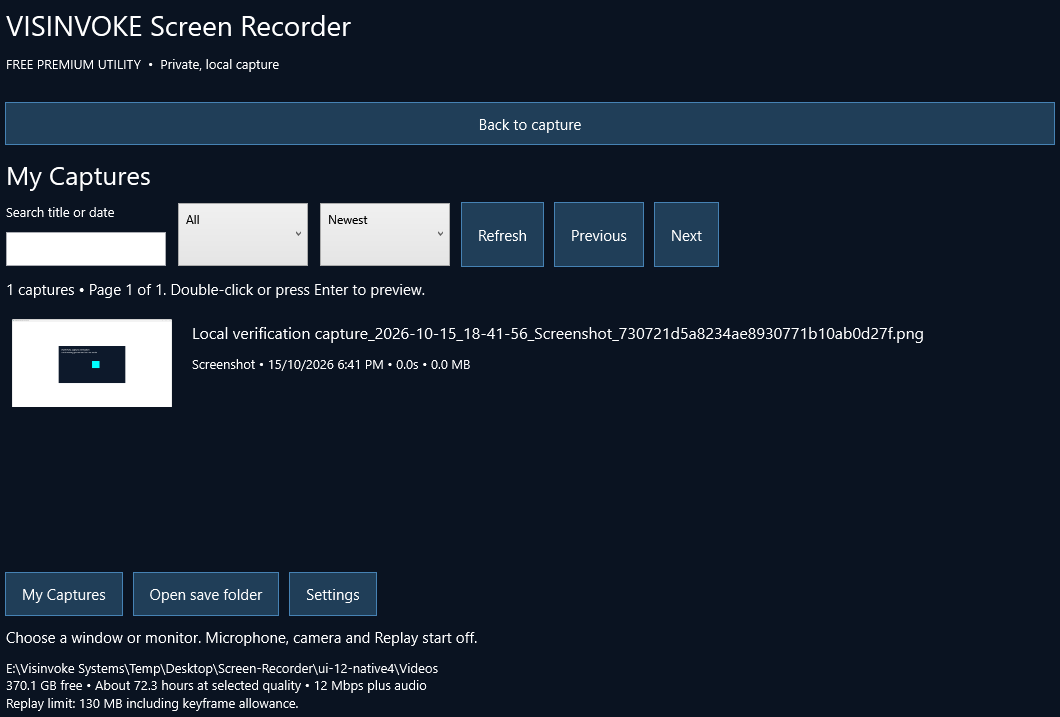
Browse thumbnails, search names, sources, dates and tags, and filter screenshots, videos, replays or favourites. Sorting and paged results keep large libraries usable.
Open a capture to preview it. Copy the image, copy the file, copy its path or show it in Explorer. Rename and export to a new file name; deletion uses the Windows Recycle Bin.
A full recording can carry bookmarks. Video preview provides playback and seeking, and can save a selected frame as a still image. Independent audio files remain available beside the mixed recording.
Preserve completed footage and explain what happened.
Finalized fragments and a durable journal can be recovered on restart. Recovery creates playable output from the complete fragments that remain.
Windows session, power, display and audio-device changes receive explicit pause or finish handling. Choose the source and sound again when the environment changes.
Windows lock, secure desktops, minimized sources and protected content have real capture limitations. The recorder does not bypass protection or inject into games.
SDR is the output format for this release. HDR capture is blocked with a next step, avoiding a promise of colour-correct HDR footage that has not been established.
Basic capture and editing need no additional product.
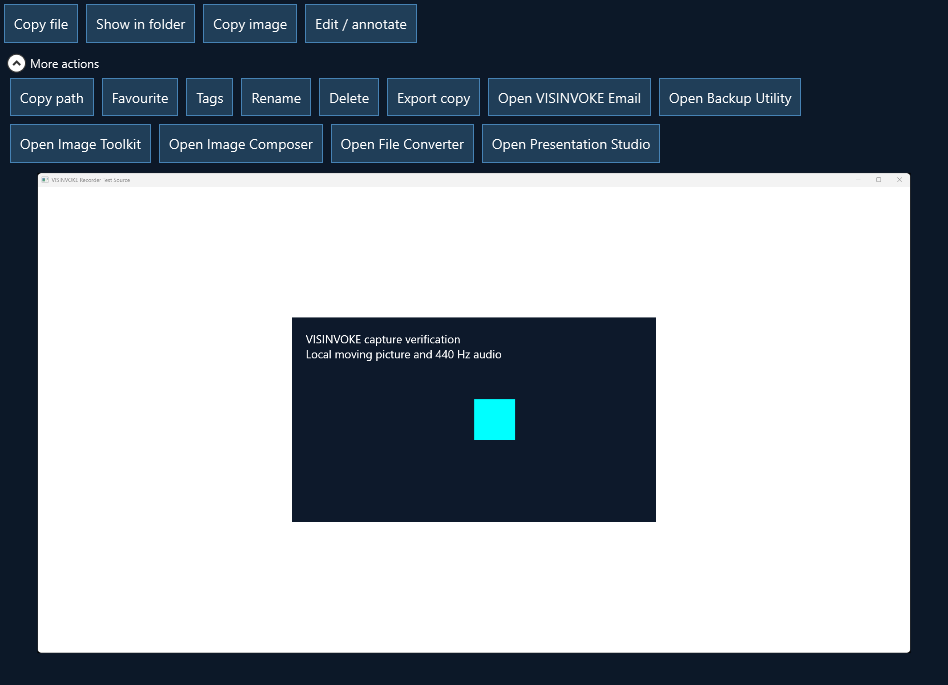
Preview can open existing Image Toolkit, Image Composer, File Converter, Presentation Studio or Email through Desktop Command Centre when applicable. The selected local path is copied, with a clear instruction to use that product’s Add, Open or Attach command.
The current shared route does not accept a file-import parameter. The recorder explains that manual step instead of claiming an automatic import. Each destination retains its own sign-in, compatibility and access rules.
Backup Utility can protect the saved capture folders using its existing folder setup. Screen Manager remains the separate product for arranging displays. Website Capture Suite remains the separate product for website capture.
Opening a related application does not start a paid or AI operation. Any operation in another product remains a separate, deliberate choice under that product’s rules.
No recording charges, cloud encoding or AI API requirement.
Create a free VISINVOKE account or use the account you already have. Install and launch the native Windows utility through Desktop Command Centre.
Media remains in your chosen local folders. Repairing or removing the application does not require deleting your saved screenshots and recordings.
Windows 11 is the primary verified environment. Older supported Windows builds offer clearly named sound fallbacks. Windows N editions need the Windows Media Feature Pack.
Driver, source and display capabilities determine available capture and performance. Microphones, cameras, multiple displays and protected games must be checked on the actual machine.
Capture, sound, editing and privacy in plain language.
Yes. Screen Recorder is a free VISINVOKE utility with no recording credits, subscription, watermark or per-recording charge. Use your existing VISINVOKE account and Desktop Command Centre.
Recording, replay, thumbnails and editing run locally. The recorder has no media-upload or AI-processing service. Copying or attaching a file to another application is an explicit choice.
Turn on Replay before the moment happens. The recorder keeps recent encoded footage in a bounded local cache. Save Replay creates a separate playable file from the history that is available.
Game sound follows the selected application process on supported Windows builds. All PC sound records the output mix and can include chat, browsers and notifications. Microphone and camera start off.
Yes. The local screenshot editor and quick video editor are included. Other VISINVOKE products are optional. Every edited image or exported clip is a new file, preserving its original.
Recover Recording can assemble already finalized local fragments. The final unfinished fragment may be lost. Recovery cannot replace a disconnected drive or restore files removed outside the recorder.
Windows 11 is the verified platform. Windows 10 build 19041 or newer can use supported capture APIs; process-only audio needs build 20348 or newer. This release produces SDR H.264/AAC MP4 and asks you to select an SDR display when HDR is enabled. Protected content cannot be captured.
Connect an available device and enable it explicitly. A short local test checks picture and sound before a long session. Optional creator mode keeps the mixed MP4 plus independent WAV files for local mixing. Device availability and Windows permissions still apply.
Use the existing account installer pathway for Desktop Command Centre.
Images on this page show the actual Windows application with a locally captured verification window. They do not imply that every game, device or graphics configuration has been tested.